Your cloud drives, mounted like a local folder.
Drive Crazy connects your cloud storage and makes it show up in Finder and File Explorer — open, edit and save files as if they lived on your machine.
Works today with Microsoft Teams, SharePoint & OneDrive. More clouds landing soon.
Your clouds, right in the sidebar.
Every mounted drive sits next to your other locations. Browse, preview and open files the way you already do.
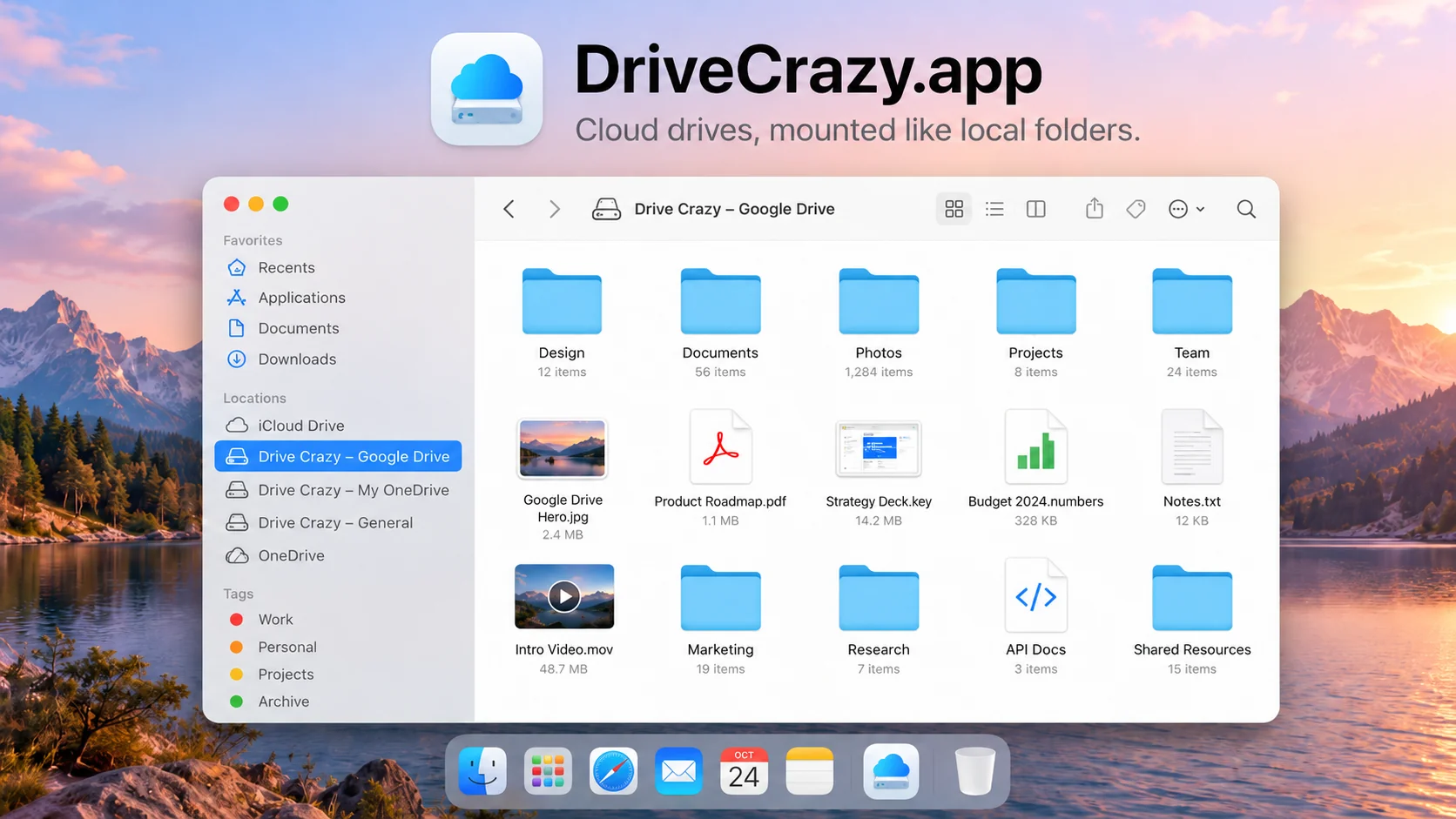
One drive to rule every cloud.
Stop juggling browser tabs and sync folders. Mount your storage once and work with it natively.
Native mounting
Your cloud appears right in Finder and File Explorer. Double-click, drag, drop — no browser, no uploads.
Stream, don't sync
Files open on demand instead of downloading everything. Access terabytes without filling your disk.
Universal by design
Built to speak to many clouds. Add a new provider and it mounts alongside the rest — one consistent workflow.
Secure sign-in
Authenticate through your provider's official login. Drive Crazy connects on your behalf — your credentials stay with them.
Mac & Windows
A true desktop app on macOS today, with Windows right behind it — the same drives on every machine you use.
Works with your tools
Any app that opens files can open cloud files — Office, Adobe, editors, scripts. It's just a drive.
Connected today. Growing fast.
Microsoft's stack works right now. S3 buckets are next, then Google Drive, with more providers after that.
- SharePoint sites & document librariesSupported
- Microsoft Teams files & channelsSupported
- OneDrive personal & businessSupported
- S3 buckets Amazon S3, Wasabi & other S3-compatible storageNext
- Google Drive My Drive & shared drivesAfter S3
- Dropbox, Box, WebDAV & morePlanned
Three steps to a mounted cloud.
Install Drive Crazy
Download the app and open it. No account to create — Drive Crazy runs on your own machine.
Connect a cloud
Pick a provider and sign in securely. Teams, SharePoint and OneDrive are ready to go.
Open your files
Your cloud shows up as a drive. Work with it in any app, just like a local folder.
Mount your cloud in minutes.
Download Drive Crazy for macOS today. Windows is on the way — same app, same drives.
Installing
- Open the disk image and drag Drive Crazy into Applications, then open it from there.
- macOS will say it cannot verify the developer: the app is signed but not yet notarized with Apple. Open System Settings → Privacy & Security, scroll to the message about Drive Crazy and click Open Anyway.
- Sign in with your Microsoft work or school account, choose a Teams or SharePoint folder, and it appears in Finder's sidebar under Locations. Click Enable on Finder's banner the first time.
Nothing is synced to your disk. Settings has an Uninstall button that removes the drives, sign-ins and the app.